How to Import Photos from iPhone to Mac with iCloud Photo Stream
How to Import Photos from iPhone to Mac with iCloud Photo Stream
Photo Stream does not take up any of your iCloud Storage package. However, photos will appear in Photo Stream for only 30 days (we have a solution to this below). Photo Stream also doesn’t upload your videos, but you can view your pictures across your devices easily. For both methods, Photos will automatically transfer when your device is in a Wi-Fi zone unless you have enabled the option to transfer over cellular. To set up Photo Stream, you’ll need to enable it on both your iPhone (or iPad) and computer.
-
On your iPhone, open the Settings app.
-
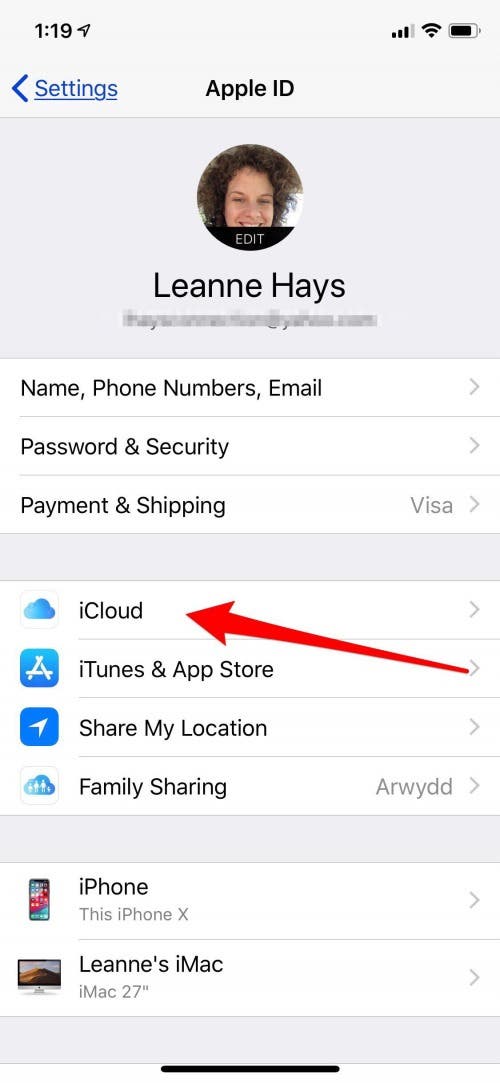
Tap the banner with your name at the top of the Settings page.


-
Tap iCloud.
-
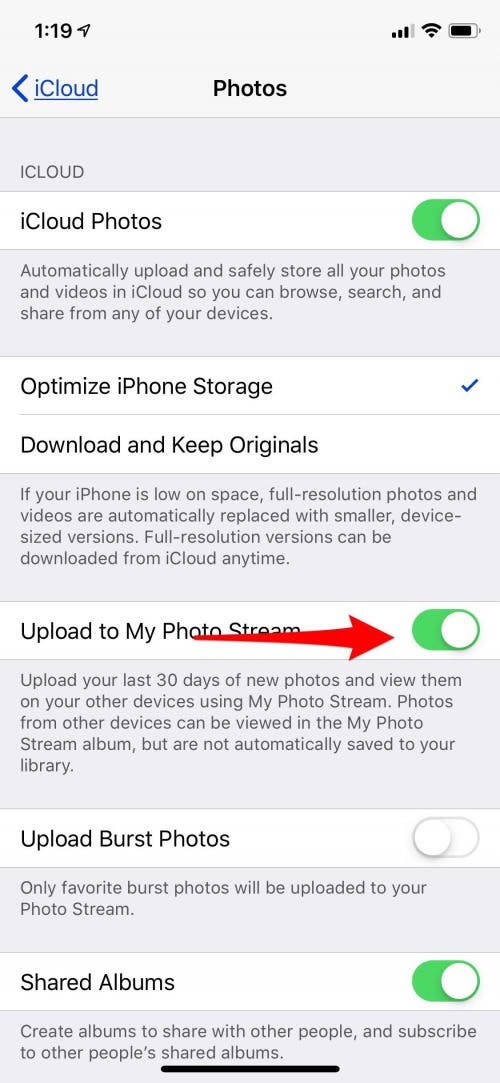
Choose Photos.

Toggle on Upload to My Photo Stream.
-
On your computer, open System Preferences from the Apple menu at the top. If you’re on a PC, click here to download iCloud for Windows.

-
Choose iCloud and sign in.
-
Tap Options next to Photos.

-
Check the box next to My Photo Stream. Click Done.

Photos will automatically be added to Photo Stream when you’re in a Wi-Fi zone. But remember, pictures remain in Photo Stream for 30 days or up to 1000 images. To set it up so that your Photo Stream images automatically download to your Mac or PC:
-
Open the Photos app.
-
Select Preferences at the very top, under Photos.
-
Choose General.
-
Check the box next to Importing: Copy Items to the Photo Library.
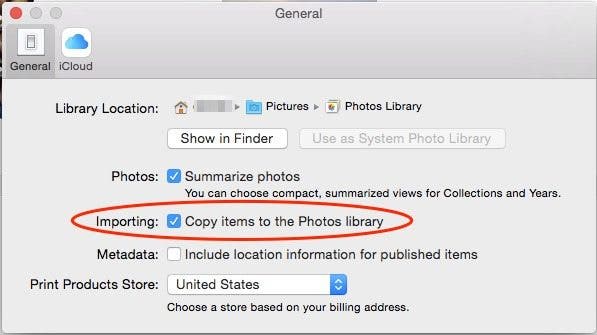
This way, even once photos leave your Photo Stream, they will be saved to your computer. You can also enable iCloud Photo Library on iPhone and computer if you pay for iCloud storage. Doing so will allow you to store your Photos in the Cloud, making them accessible online as well as on your computer.